


Kontrol MX2
Effect Controls
The 2 FX units at the left and right side of the device offer Effect controls for 3 FX Slots per Deck, Stems FX selection and easy navigation and selection.
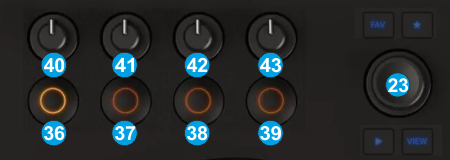
- FX1 BUT : Enable/disable the selected Effect of FX Slot 1.
When in FX selection mode, use this button to close the FX drop-down selection list
Hold SHIFT down and then use this button to open the FX List popup for FX Slot 1, then use the BROWSE encoder [23] to navigate through the list and make your selection. The led of this button will be lit in Cyan color, indicating the FX selection mode - FX2 BUT : Enable/disable the selected Effect of FX Slot 2.
When in FX selection mode, use this button to close the FX drop-down selection list
Hold SHIFT down and then use this button to open the FX List popup for FX Slot 2, then use the BROWSE encoder [23] to navigate through the list and make your selection. The led of this button will be lit in Cyan color, indicating the FX selection mode - FX3 BUT : Enable/disable the selected Effect of FX Slot 3.
When in FX selection mode, use this button to close the FX drop-down selection list
Hold SHIFT down and then use this button to open the FX List popup for FX Slot 3, then use the BROWSE encoder [23] to navigate through the list and make your selection. The led of this button will be lit in Cyan color, indicating the FX selection mode - FX4 BUT : Use this button to assign the Effects to a specific Stem. Cycles though Vocals, Melody, Drums and Off (no Stem FX) and its led gets the related Color. When Off, the Effects will apply to all the Stems channels (full Track).
Hold SHIFT and then use this button to quicly turn off the Stem FX selection without cycling through the rest of the values. - FX1 KNOB : Adjust the 1st Parameter of the selected Effect of FX Slot 1.
- FX2 KNOB : Adjust the 1st Parameter of the selected Effect of FX Slot 2.
- FX3 KNOB : Adjust the 1st Parameter of the selected Effect of FX Slot 3.
- FX4 KNOB : Adjust the 2nd Parameter (usually the Beats) of the selected Effects in all 3 FX Slots at the same time.
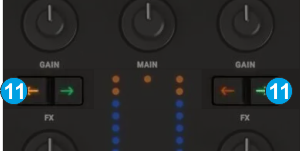
- ASSIGN : Press the left arrow button to load the Effects that are saved in 1st FX Bank to left or right Deck.
Press the right arrow button to load the Effects that are saved in 2nd FX Bank to left or right Deck.
Hold SHIFT down and press the left arrow button to save the Effects assigned to FX Slot 1 to 3 of Left Deck to the 1st FX Bank
Hold SHIFT down and press the right arrow button to save the Effects assigned to FX Slot 1 to 3 of Left Deck to the 2nd FX Bank
Front & Rear