


Blog
Numark Mixdeck Recording/Broadcasting - Setup Guide
Fri 29 Jul 11 @ 8:56 am
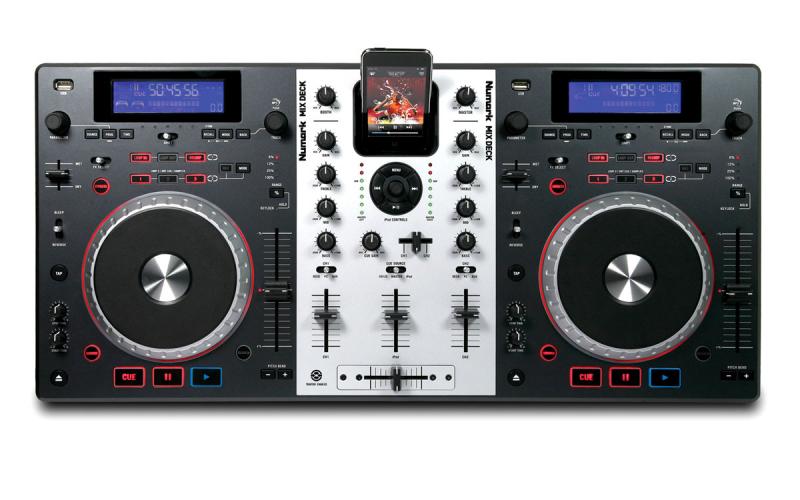
Step 1 - Making your connections
Connect RCA connecters from your Master out to your PA or stereo system. Connect an audio Y cable (3.5mm stereo plug to dual RCA) from the mic port or dedicated line-in of your computer to the record out connections of the Mixdeck.

Step 2 - Configure VirtualDJ
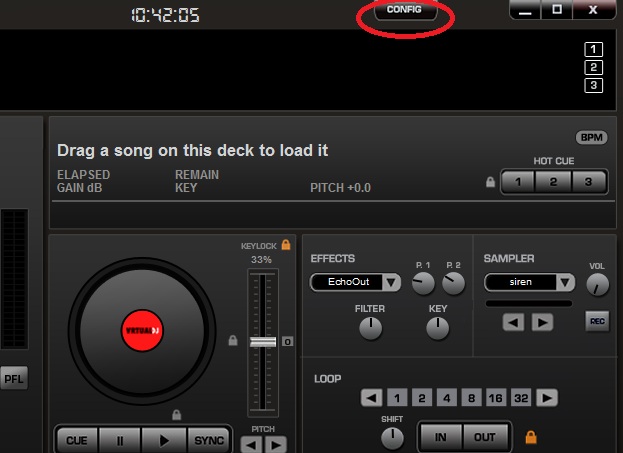
Open up the software and go to Config then sound setup
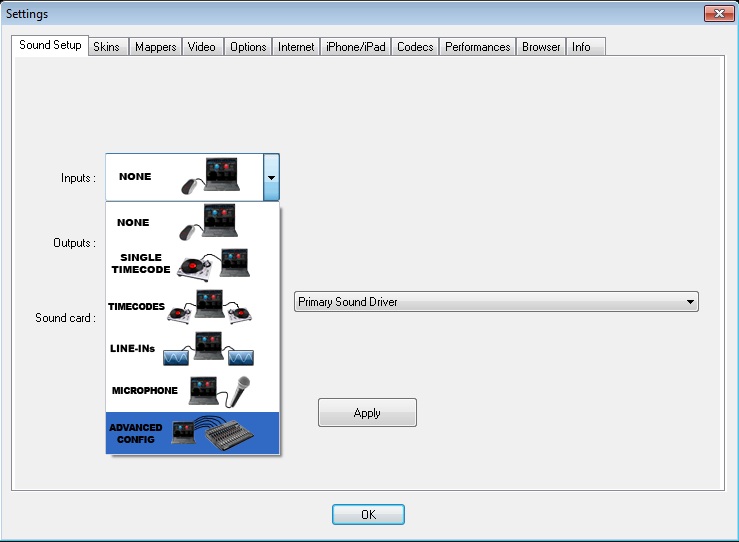
In the sound setup tab under inputs choose Advanced
Then click on the Advanced Config button
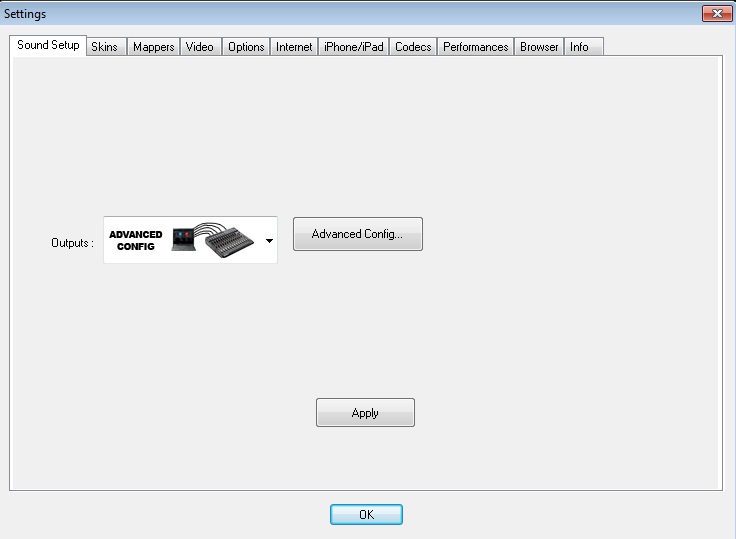
Now setup your decks according to the following image. Your record loopback setting should be set to your primary sound card (not necessarily the one captured in the image).
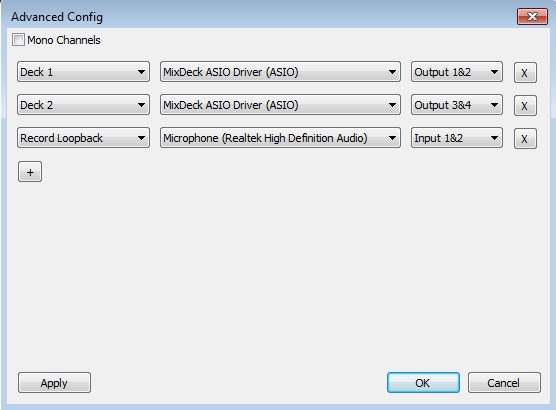
Note: Your input line may need to be switched from input 1&2 to input 3&4 in the record loopback setting depending on how your computers inputs are configured. Make a test recording to see if your settings are correct - if you have no sound in your recording, switch the inputs.
Step 3 - Setup recording or broadcasting
Now configure your system to record and/or broadcast as per the VirtualDJ User Guide starting on page 59.